
Hosting Australia offers a token based Quick Install option for all SSL Certificates purchased from our online portal, known as AutoInstall SSL.
Please follow the steps to install and/or update your SSL. Note, this guide assumes you have already purchased the SSL. If you have not yet done this, view our range of SSL Certificates and purchase the appropriate product. Once done, proceed with the steps below.
- Firstly, locate the "token" for the SSL you wish to install. This is available via your HA account, login to the HA Client Area and under the primary menu, choose SERVICES >> MY SERVICES.
- You will see a list of all products in your account. Either browse the list or search, to locate the SSL Certificate you wish to install. Once you have located the correct product, click on it to view the detail page.
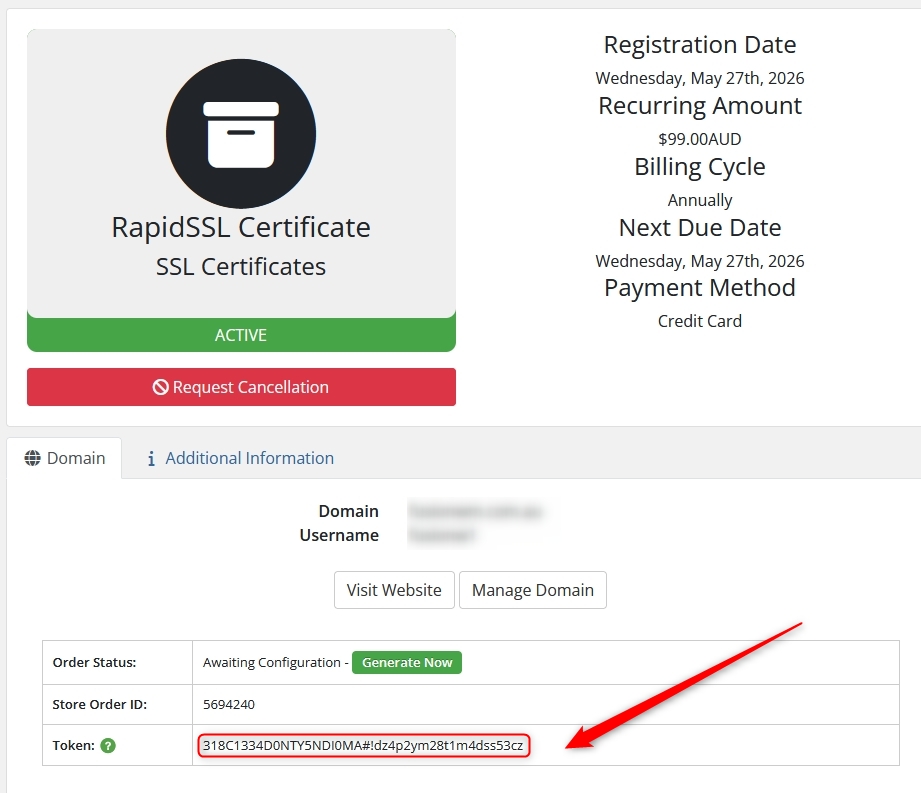
- Towards the bottom of the SSL product detail page, locate the "Token" section, as shown below. Copy this exactly as it is and record it somewhere, such as a plain text editor. You will need it later in this process.
- Login to your cPanel account. (See here for steps on how to do that if you aren't sure).
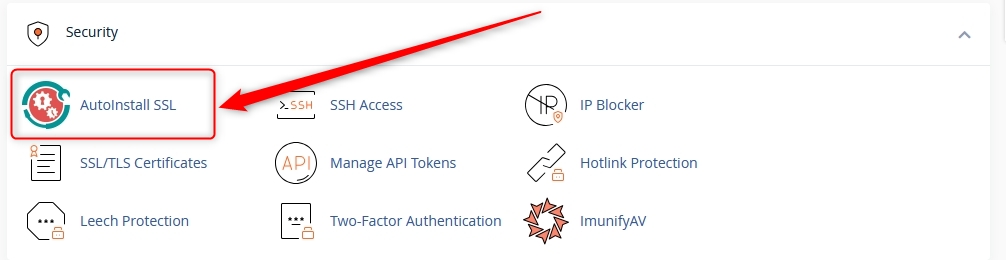
- In the Security category in cPanel, open the AutoInstall SSL app.
- On the AutoInstall SSL page, paste the token you copied in step 3 above, and click "Verify Token".
- You will be prompted to enter some details for your SSL - choose your Domain/Webspace from the drop down list. Please note, only domains you currently have added to this cPanel will be available from this list.
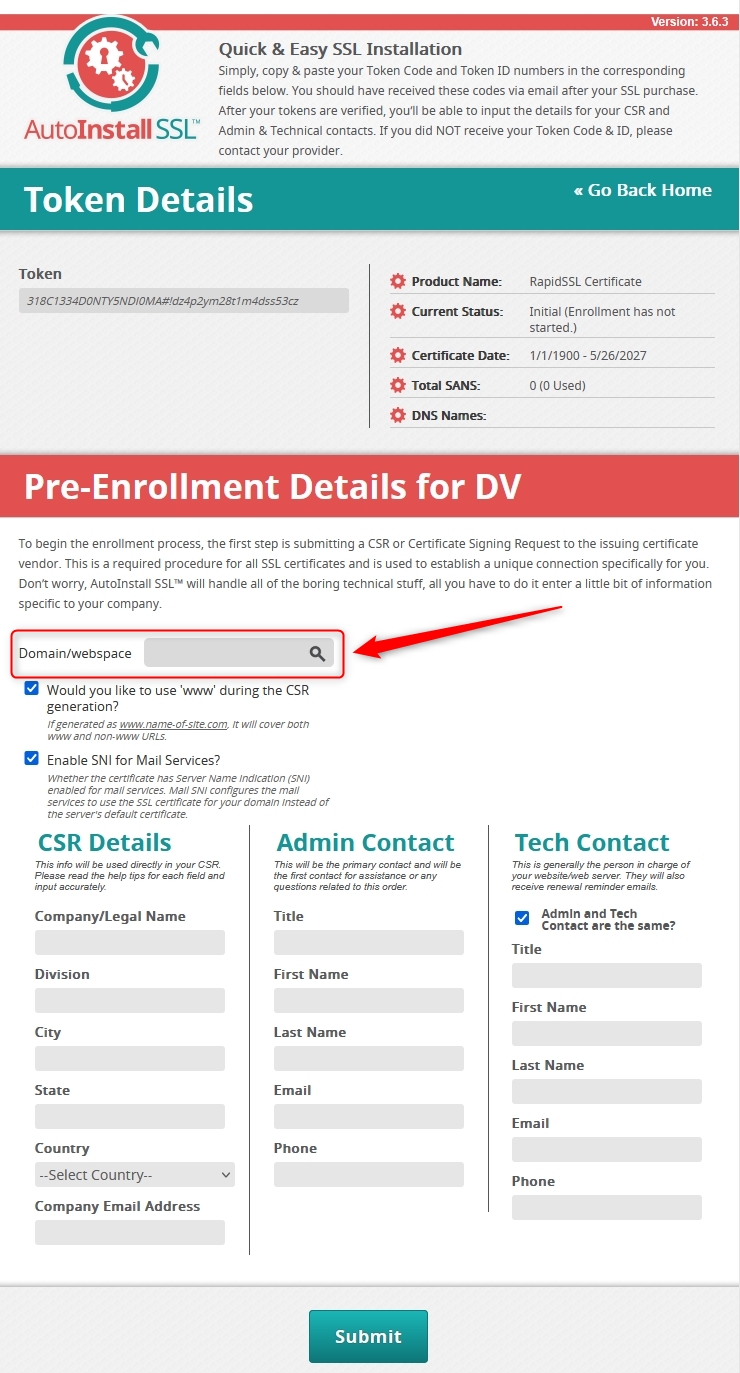
- Enter the remaining details, relevant to your organisation and click "Submit".
- The install process will begin. This can take a few moments to complete, whilst the verification is completed and the new SSL Certificate is downloaded from the issuing server.
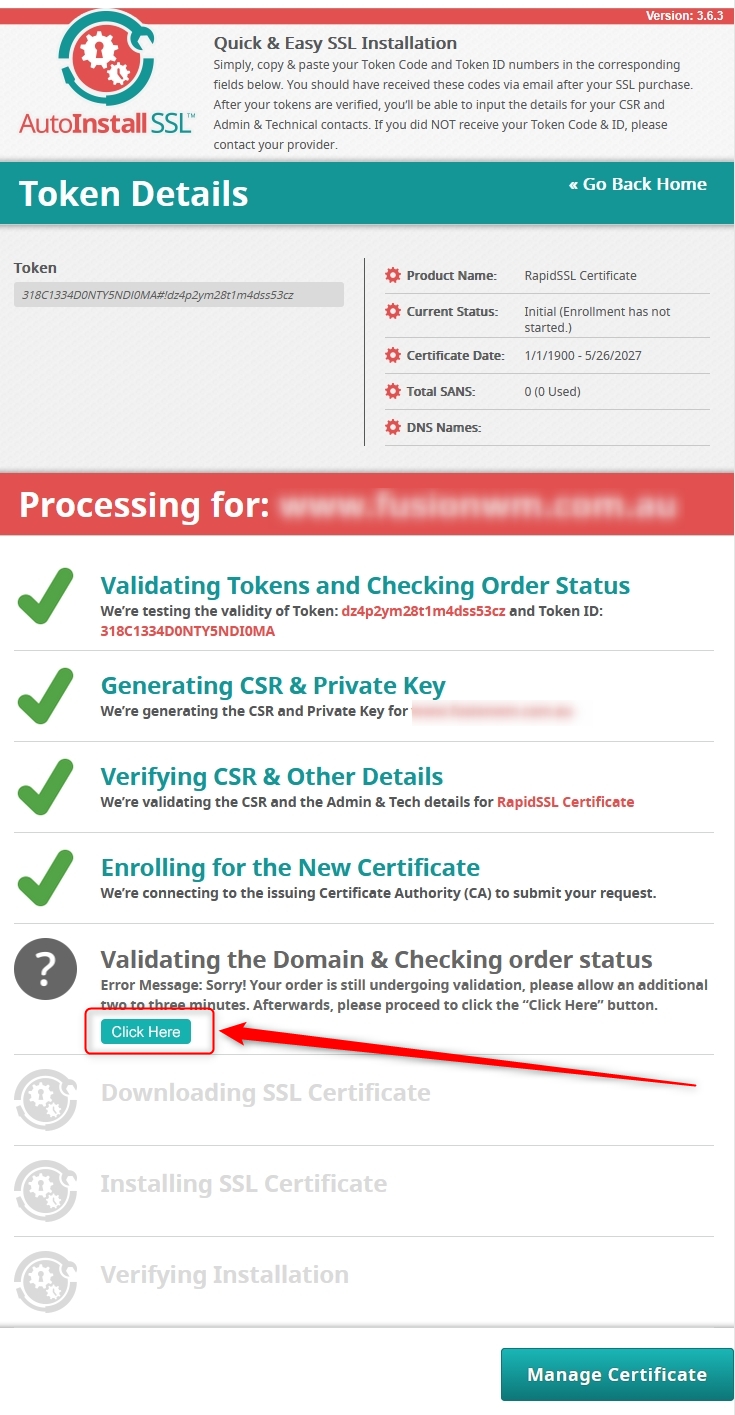
- Please note, it is quite normal to be presented with the below warning. The SSL Issuing server can be quite busy at times. If this does appear, please wait 5-10 minutes and the click on the button shown to retry.
- Once the installation is completed, you will see the below confirmation
 .
. - Please allow another couple of minutes for the certificate to be installed on your cPanel account.
The process is now complete.