
How to Run the AutoSSL Check in cPanel
If your website is showing as “Not Secure”, your SSL certificate has expired, or HTTPS suddenly stopped working, the quickest fix is often to run the AutoSSL check in cPanel. AutoSSL is cPanel’s built-in system that automatically issues and renews free SSL certificates (usually via Let’s Encrypt or Sectigo). In most cases, running AutoSSL manually will reissue or repair a broken certificate within minutes.
What Is AutoSSL?
AutoSSL automatically:
- Issues free SSL certificates for your domains
- Renews certificates before they expire
- Covers your main domain, addon domains and subdomains
- Installs certificates for both website and mail services
If something changes (DNS, domain moved, domain added, site migrated), AutoSSL may fail or need to be re-run manually.
When Should You Run AutoSSL?
Run AutoSSL if:
- Your site shows “Not Secure”
- You have removed an actively installed SSL (See here)
- You get browser SSL warnings
- HTTPS suddenly stopped working
- You’ve just added a new domain or subdomain
- You recently migrated your site or DNS
- Your SSL certificate expired AutoSSL previously failed
How to run AutoSSL
- Login to cPanel (See THIS article for steps on how to do that)
- Under the security category, locate SSL/TLS Status
- On the SSL / TLS Status page click the Run AutoSSL button.
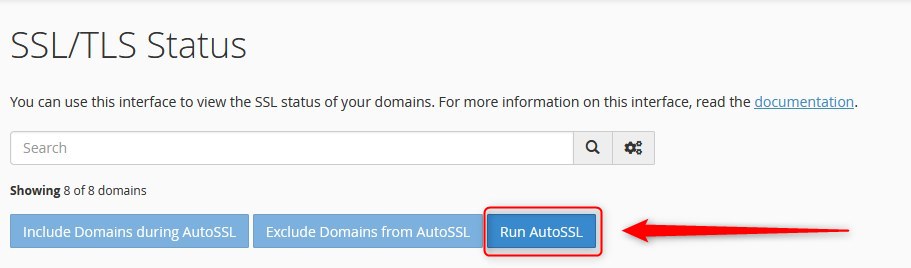
- Allow the process to complete, it can take from 30-90 seconds. You should see green circles next to the list of domains/sub domains for all successful installations.